
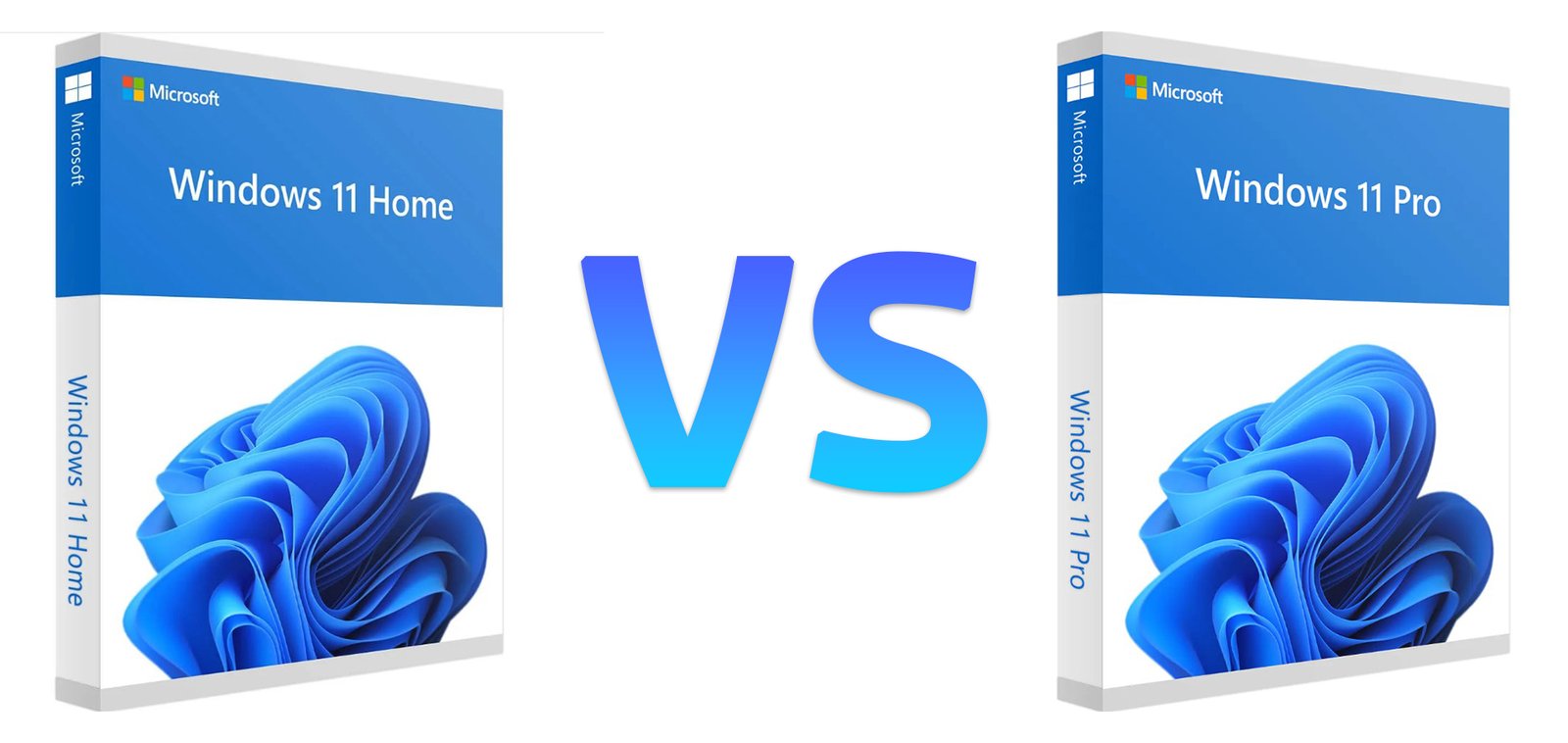
How to Upgrade Windows 11 Home to Pro Without Reinstalling (and Whether It Is Worth It)
With Windows 11 24H2 reaching the end of updates on October 13, 2026 for Home and Pro editions, a lot of people are reviewing their setup and asking the same question: is Home still enough, or is it time to move up to Pro? The good news is that you do not need to wipe your PC to find out. Microsoft’s own support documentation describes edition changes as “as simple as entering a product key,” and your files, apps and settings stay where they are.
Why the Home to Pro question keeps coming up
Most people start on Home because it comes preinstalled on consumer laptops and covers everyday needs. The question usually returns when the computer takes on a bigger role: a work-from-home setup, a small business machine, a development laptop, or a PC that needs to be reachable remotely. Pro adds Remote Desktop hosting, full BitLocker management, Hyper-V virtual machines, Windows Sandbox, Group Policy and domain join, and it raises the RAM ceiling from 128 GB to 2 TB.
If those features sound relevant, the upgrade is worth considering, and the key you use matters. A Windows 11 Pro key is what moves an existing Home installation to Pro in place. If you are instead setting up a fresh machine for browsing, streaming or gaming and Pro features are not on your list, a Windows 11 Home key keeps things simple and avoids paying for tools you will never open.
Before you start: check your current edition and activation
Open Settings, go to System, then About, and look under Windows specifications to confirm the edition you are running. Then go to System > Activation and make sure Windows reports that it is activated. Microsoft recommends activating Home first, because the upgrade path assumes a working, activated base installation. Back up anything important as a precaution, even though the upgrade is designed to keep your data intact.
Method 1: Upgrade with a Windows 11 Pro product key
This is the quickest route if you already have a key. In Settings, open System, then Activation, and find the section named Upgrade your edition of Windows. Select Change next to Change product key, enter the 25-character Pro key, and select Next. When Windows confirms the key is valid, choose Start to begin the upgrade. The PC will prepare the new edition, restart, and sign you back in running Windows 11 Pro.
In practice the restart takes a few minutes, which is far less than a clean reinstall. Many users also report that a valid Windows 10 Pro key works for this step, since the two systems share the same licensing technology, though a key issued for Windows 11 Pro is the safer choice.
Method 2: Upgrade through the Microsoft Store
If you do not have a key, the same Activation page offers an Open Store option under Upgrade your edition of Windows. The Store shows the current upgrade price for your device, and after purchase Windows downloads the components and upgrades the edition automatically. Make sure you are signed in with your Microsoft account, because the license is linked to it. This route is convenient, but it is worth comparing the Store price with other legitimate sources of a Pro license before you commit.
Is the upgrade worth the money?
The honest answer depends on how you use the machine. If you never connect remotely, never run virtual machines and have no need for managed encryption or policy controls, Home will serve you well and the upgrade is a cost with little return. If you handle client files, work across locations or want an isolated space for testing software, Pro pays back through security and flexibility. A simple test is to list the Pro features you would use in the next six months. If the list is empty, stay on Home.
What to do if the upgrade fails
If Windows rejects the key, check that you typed it correctly and that it is a Pro key rather than another edition. Confirm that you have an internet connection, restart the PC, and try again. If the Activation page shows an error code, the Troubleshoot option on the same page can often resolve it. As a last resort, the slmgr /ipk command followed by your key, then slmgr /ato, run from an administrator Command Prompt, can force the change through.
Final thoughts
Moving from Windows 11 Home to Pro is one of the easiest upgrades Windows offers: no reinstall, no lost files, and a few minutes of restarts. The real decision is whether you need what Pro adds. Answer that first, then pick the license that fits, and you will have a supported, properly activated system for the long run.